

The Stress-Free Way to Handle Your HubSpot Marketing Automation Setup
Why Your HubSpot Marketing Automation Setup Can Make or Break Your Growth

HubSpot marketing automation setup is the process of configuring workflows, triggers, and actions inside HubSpot to automatically handle repetitive marketing, sales, and service tasks — so your team can focus on what actually moves the needle.
Here's a quick overview of how to get it done:
- Go to Automation > Workflows in your HubSpot account
- Choose a creation method — from scratch, using a template, or with AI (Breeze Assistant)
- Set your enrollment trigger — form submission, page view, lifecycle stage change, etc.
- Add actions — send emails, assign tasks, update records, create notifications
- Configure re-enrollment and unenrollment settings to control contact flow
- Test the workflow before turning it on
- Monitor performance via enrollment history and action logs
Note: Advanced automation features like workflow-based email sends require Marketing Hub Professional or Enterprise.
Most founders set up their first workflow thinking it's just about sending emails faster. It's not. Done right, HubSpot marketing automation becomes the operating system behind your entire growth engine — qualifying leads, nurturing prospects, aligning sales and marketing, and keeping your pipeline clean without manual effort.
The numbers back this up. Businesses that implement marketing automation see a 451% increase in qualified leads. And 76% of companies using automation generate positive ROI within the first year. Those aren't small wins — they're business-changing outcomes.
But here's the catch: getting the setup wrong is easy. Misconfigured triggers, missing re-enrollment logic, or skipping the testing phase can mean contacts fall through the cracks — or worse, get spammed into unsubscribing.
That's exactly why this guide exists.
I'm Doru Angelo, Founder & CEO of Onyx Elite LLC, and with over a decade of experience helping businesses build scalable systems and operational efficiency, I've guided organizations through every stage of HubSpot marketing automation setup — from the first workflow to full-funnel orchestration. Let's walk you through it the stress-free way.
Understanding the Core of HubSpot Marketing Automation Setup
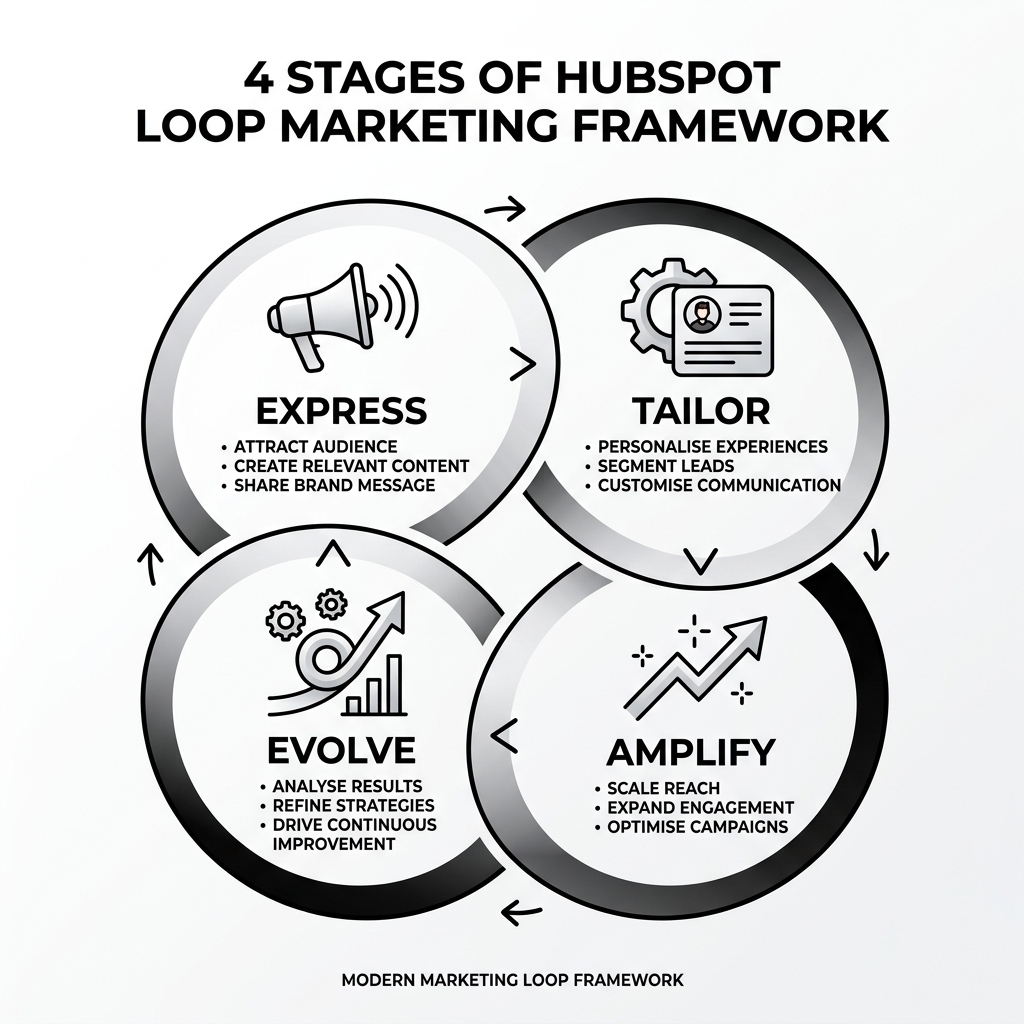
At its heart, a successful HubSpot marketing automation setup isn't just a technical configuration; it's a strategic alignment of your business goals with HubSpot’s powerful "If This, Then That" logic. We often see businesses dive straight into the tools without a plan, but the most effective automations are powered by clean CRM data and a deep understanding of the customer journey.
HubSpot has been recognized by Gartner as a leader in B2B Marketing Automation Platforms for four consecutive years because it doesn't just send emails—it orchestrates experiences. By using CRM-powered personalization, you can ensure that every automated touchpoint feels human and relevant. This is critical because marketing databases decay by approximately 22.5% per year without proper nurturing. Automation acts as the "maintenance crew" for your database, keeping leads warm and data accurate.
Before you click "Create Workflow," you need to focus on data hygiene. If your CRM is cluttered with duplicate contacts or outdated lifecycle stages, your automation will simply scale your mistakes. We recommend reviewing our guide on Simple CRM Small Business to ensure your foundation is solid. For a deeper dive into the philosophy of automation, check out this Marketing Automation Guide | What is Marketing Automation?.
Subscription Requirements and User Permissions
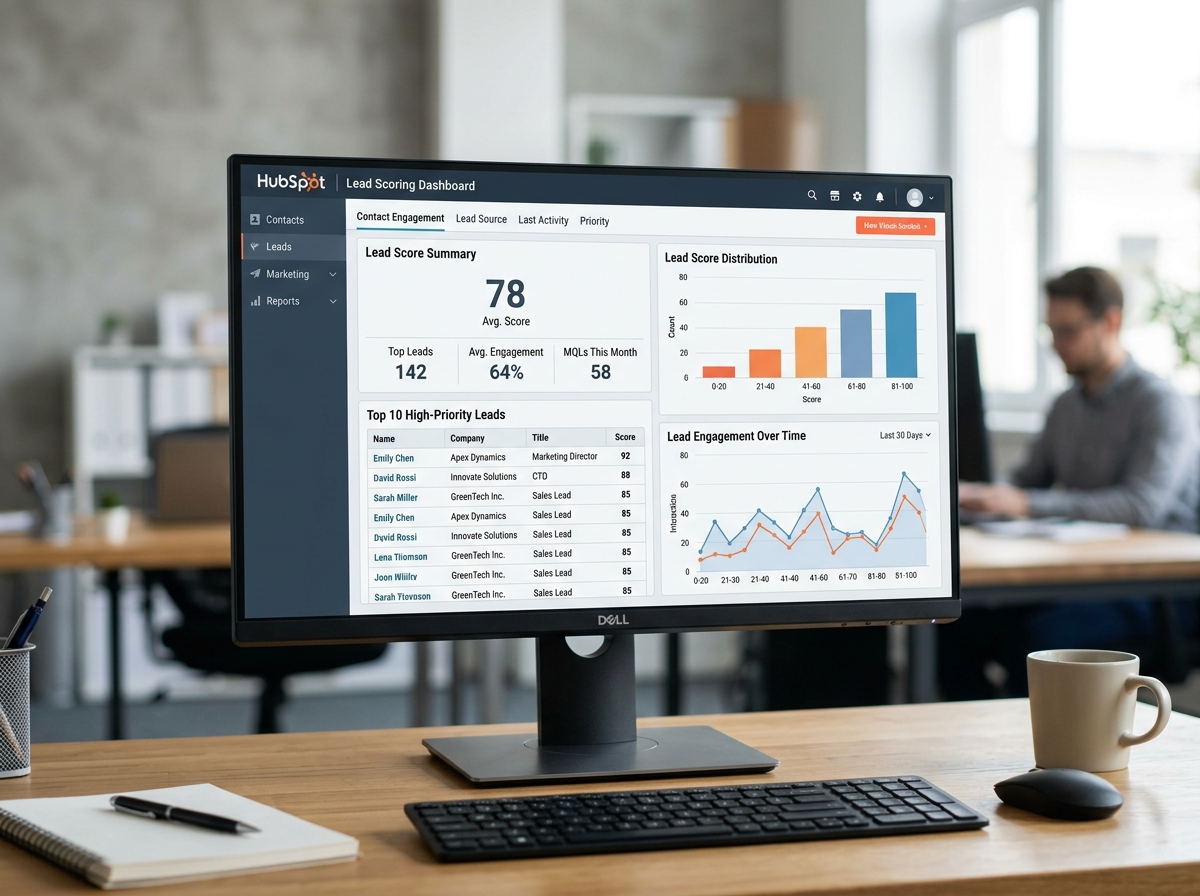
One of the most common points of confusion during a HubSpot marketing automation setup is knowing what features your plan actually includes. HubSpot gates its most powerful automation tools behind specific tiers:
- Marketing Hub Starter: Allows for "Simple Workflows" (up to 10 actions per workflow) directly within the email or form tool.
- Marketing Hub Professional & Enterprise: Unlocks the full Workflows tool, allowing for complex branching logic, internal notifications, and cross-object automation (like updating a Company record based on a Contact’s action).
- Sales Hub Professional & Enterprise: Required for lead pipeline automation and sequences.
Permissions are equally vital. To build and launch these systems, a user generally needs Edit permissions for workflows to create them and Publish permissions to take them live. If you're the one leading the charge, having Super Admin status is the easiest way to ensure you aren't blocked by access issues during the configuration.
Different Types of HubSpot Automation
Not all automation in HubSpot looks the same. Depending on your goal, you might use one of four primary types:
- Simple Automation: Created directly inside a form or marketing email. It’s perfect for "thank you" notes or adding a contact to a specific list immediately after an interaction.
- Advanced Workflows: These are the "heavy lifters." They allow for multi-step logic, delays, and "If/Then" branches that can route a contact down different paths based on their behavior.
- Pipeline Automation: Specifically for Sales and Service Hubs. This automates tasks like creating a follow-up task when a Deal moves to "Closed Won" or sending a survey when a Ticket is marked "Resolved."
- Sequences: Unlike workflows, which are "one-to-many," sequences are "one-to-one" automated sales emails sent from a specific rep's inbox to a prospect.
| Feature | Simple Workflows | Advanced Workflows |
|---|---|---|
| Max Actions | 10 per workflow (Starter) | Unlimited |
| Branching Logic | No | Yes (If/Then) |
| Goal Tracking | No | Yes |
| Trigger Types | Single asset-based | Multi-criteria/Filter-based |
| Internal Alerts | Limited | Robust (Slack, Email, SMS) |
Step-by-Step Guide to Your HubSpot Marketing Automation Setup
Ready to build? The first step in your HubSpot marketing automation setup is preparation. You shouldn't start building until you have your "assets" ready. This means your marketing emails are drafted, your forms are live, and your lists are segmented.
HubSpot now offers three ways to start a workflow: From Scratch, From a Template, or With AI (Breeze Assistant). If you're new to this, templates are a goldmine. They offer pre-built logic for common scenarios like "Welcome New Subscribers" or "Re-engage Cold Leads."
For those who want more control, starting from scratch allows you to define every nuance. You can follow the official How to Create Workflows in HubSpot for Marketing, Sales, and Service for a technical deep dive, but here is our streamlined process.
Configuring Enrollment and Re-enrollment in Your HubSpot Marketing Automation Setup
The "Enrollment Trigger" is the front door of your workflow. It tells HubSpot exactly which records should enter the automation.
- Filter-based Triggers: Enroll records based on properties (e.g., "Industry is Manufacturing" AND "Lifecycle Stage is Lead").
- Event-based Triggers: Enroll records based on actions (e.g., "Contact clicked a link in Email X" or "Contact visited the Pricing Page").
The Secret Sauce: Re-enrollment Logic This is where most people trip up. By default, a contact only goes through a workflow once. If you want a contact to get a notification every time they fill out a specific form (not just the first time), you must enable Re-enrollment. You’ll need to select the specific triggers that should allow them to re-enter. Be careful here—you don't want to accidentally send the same "Welcome" email five times to the same person!
Suppression and Unenrollment Equally important is knowing when to kick someone out of a workflow. If a contact buys your product, you should have an unenrollment trigger that removes them from the "Prospect Nurturing" workflow immediately. No one likes getting a "Buy Now!" email 20 minutes after they’ve already spent their money.
Adding Actions and AI-Driven Logic to Your HubSpot Marketing Automation Setup
Once a contact is in the workflow, what happens next? This is where you add Actions.
- Communication Actions: Sending automated marketing emails. (See Use automation with emails for setup specifics).
- Internal Notifications: Alerting your sales team via Slack or email when a high-value lead is active.
- Data Management: Updating contact properties, like changing a "Lead Status" to "Attempting to Contact."
- Delays: Adding a "wait period" (e.g., 2 days) between emails so you don't overwhelm the recipient.
Enter Breeze Assistant (AI) HubSpot’s AI, Breeze, can now help you generate these steps. You can provide a prompt like, "When a contact submits the Demo Request form, wait 1 hour, send the Confirmation Email, and create a task for the owner to call them." Breeze will build the skeleton of the workflow for you, which you can then fine-tune.
Advanced Optimization and Integration Strategies
Once you’ve mastered the basics of HubSpot marketing automation setup, it’s time to look outside the HubSpot bubble. True operational excellence often requires connecting HubSpot to your other business tools.
For example, we often help clients with a Marketing Automation Integration that connects their CRM to project management tools or specialized analytics platforms. One powerful integration is with Siteimprove. This tool can be integrated with HubSpot to monitor your landing pages for Quality Assurance (QA) issues, such as broken links or accessibility errors, ensuring that your automated traffic isn't landing on a broken page.
Streamlining Sales and Service Pipelines
Automation isn't just for the marketing team. Your sales and service pipelines can benefit immensely from automated "housekeeping."
In the Sales Hub, you can Set up lead pipeline automation to handle the transition of leads. For instance, when a lead's status changes to "Connected," HubSpot can automatically move them to the next stage in your pipeline or create a follow-up task.
In the Service Hub, you can automate ticket status updates. If a customer hasn't replied to a support ticket in 3 days, HubSpot can send a gentle automated nudge to ask if they still need help, and if there's no reply for 5 days, it can automatically close the ticket. This keeps your service dashboard clean and ensures no customer inquiry goes unanswered.
Best Practices to Avoid Common Automation Mistakes
Even the best HubSpot marketing automation setup can fail if it isn't monitored. Here are the "Golden Rules" we follow at Onyx Elite:
- Always Use "Test Mode": Before turning a workflow on, use the "Test" button to see how a specific contact would move through the steps. It’s better to find a logic error now than after 500 people have been enrolled.
- Avoid "Over-Automation": Don't automate things that require a human touch. If a lead is highly qualified and asking specific questions, a generic automated email can actually damage the relationship. Use automation to facilitate the human handoff, not replace it.
- Monitor the Action Logs: Check your workflow history regularly. If you see a high number of "Errors," it usually means a contact property is missing or an email wasn't published.
- Use Behavioral Triggers: Time-based triggers (Wait 2 days) are fine, but behavioral triggers (Wait until contact visits page X) are much more powerful for personalization.
- Document Your Logic: As you build more workflows, it’s easy to forget which one does what. Use the "Description" field in HubSpot to explain the goal of the workflow and who it targets.
For a visual walkthrough of these pitfalls, the HubSpot Automation Tutorial | Workflows & Sequences Explained is a fantastic resource to keep on hand.
Frequently Asked Questions about HubSpot Automation
What is the difference between a sequence and a workflow?
Think of a Workflow as a "set and forget" engine for marketing—it's designed to handle large groups of people based on their behavior. A Sequence is a sales tool—it's a series of personalized emails sent from a specific salesperson to an individual prospect. Workflows are "one-to-many," while sequences are "one-to-one."
How do I prevent contacts from receiving too many automated emails?
You can use Suppression Lists or Enrollment Limits. You can also set "Quiet Hours" in your workflow settings to ensure emails are only sent during business hours, and use "Unenrollment triggers" to remove people from a nurture track the moment they take a desired action (like booking a meeting).
Can I use AI to build my HubSpot workflows?
Yes! With HubSpot’s Breeze Assistant, you can use natural language prompts to describe the automation you want. For example, "Create a workflow that notifies the sales team when a lead from the tech industry visits our pricing page." Breeze will then draft the triggers and actions for you to review.
Conclusion
A successful HubSpot marketing automation setup is one of the most significant investments you can make in your business’s future. It’s the difference between a team that is constantly playing catch-up and a team that is scaling with precision. By following the steps in this guide—from setting clean enrollment triggers to integrating external tools like Siteimprove—you’re building a system that works for you 24/7.
At Onyx Elite LLC, we specialize in helping businesses in West Hartford and throughout Connecticut achieve this level of operational excellence. Whether you’re just starting your HubSpot journey or looking to optimize a complex web of existing workflows, our team is here to ensure your growth is sustainable and your systems are stress-free.
Ready to take your automation to the next level? More info about our services. Let's build something that moves the needle together.